
Convert PowerPoint to PDF: The Right Way to Do It
Learn how to convert PowerPoint to PDF using simple, built-in steps inside Microsoft Office to secure your presentation layouts and facilitate professional file sharing.
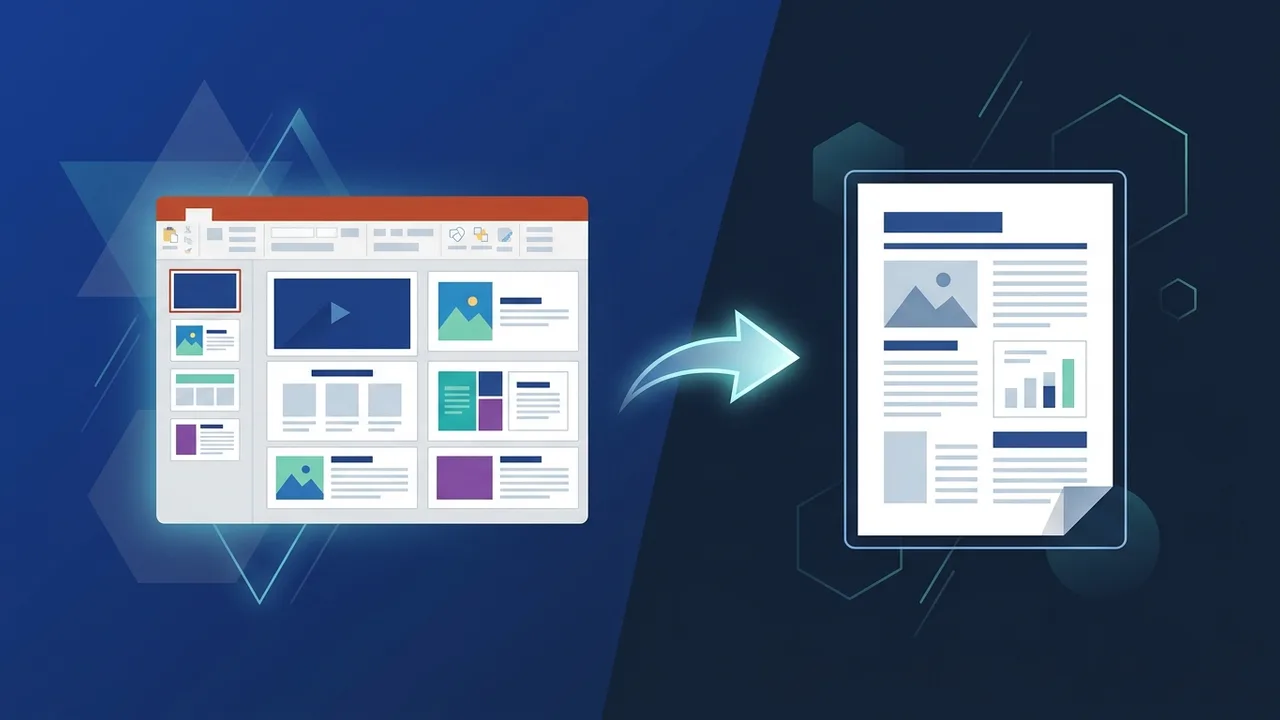
Overview of convert PowerPoint to PDF
Presentations serve as a fundamental communication channel in both modern business and academic landscapes within Saudi Arabia. Once you have dedicated hours to refining your slides, the decision to convert PowerPoint to PDF becomes essential to ensure your hard work is displayed exactly as intended. Converting files to a PDF standard preserves your carefully designed layouts, structural elements, and graphic properties when shared across different platforms and networks.
In various professional fields in Riyadh, Jeddah, and across the Kingdom, sharing official business proposals, educational materials, and project status updates in PDF format is highly recommended. It successfully eliminates worries regarding compatibility issues between different versions of Microsoft Office, mismatched operating systems, or formatting shifts when viewed on mobile screens.
Key Features
Utilizing the built-in functionalities to transform presentations yields multiple operational benefits. Here are the key advantages when you choose to convert your presentations:
- Absolute Visual Consistency: The fonts, vector shapes, image placements, and background stylings remain completely locked in place, avoiding any sudden text overlaps or misalignment.
- Highly Optimized File Sizes: PDFs are generally more compressed than native PPTX presentation files that carry extensive background data, making them ideal for seamless email distribution.
- Universal Accessibility: Recipients can effortlessly view PDF files on laptops, tablets, and smartphones without needing heavy office suites installed.
- Enhanced Security Measures: PDF documents support advanced password encryptions, print restrictions, and copy-paste preventions to defend your valuable proprietary information.
How to Use
There are multiple secure ways to successfully convert PowerPoint to PDF directly within Microsoft PowerPoint, ensuring you do not have to rely on third-party online converters that might compromise confidential data. Here are the step-by-step methods:
Method 1: Utilizing the 'Save As' Feature
- Launch your target presentation file (PPTX) in the desktop version of Microsoft PowerPoint.
- Navigate to the top-left menu bar and click on the File tab.
- Select the Save As option from the sidebar and browse to select your preferred storage folder on your local computer.
- Locate the Save as type dropdown menu beneath the file name field, and select PDF (*.pdf) from the available list.
- Click the Save button. PowerPoint will immediately compile and export your slides into a high-quality PDF document in your designated directory.
Method 2: Utilizing the 'Export' Utility
- Open your slide deck and head straight to the main File menu on the navigation ribbon.
- Click on the Export option visible on the left navigation pane.
- Click the button labeled Create PDF/XPS Document, and then select the corresponding icon on the right side of the screen.
- An export dialog box will open, allowing you to configure quality outputs. Choose either "Standard" for print-ready resolution or "Minimum size" for fast online publishing, then click Publish.
Common Questions
Professionals and students regularly encounter specific queries when trying to convert PowerPoint to PDF. To help you manage your daily workflow smoothly, we have addressed the most persistent questions regarding this file transition:
- Are active hyperlinks preserved during the file export? Yes, when you use official Microsoft tools, all embedded links remain clickable inside the final exported PDF document.
- Can I convert only selected slides instead of the entire presentation? Yes, in both the Export and Save As dialog windows, click on the "Options" button to specify a custom slide range to print.
Important Tips
To ensure your output documents look polished and professional without any visual artifacts, please implement the following helpful design tips:
- Check Slide Aspect Ratios: Make sure your presentation aspect ratio (16:9 widescreen or 4:3 standard) aligns with your final target distribution format to prevent unwanted black bars.
- Embed Custom Font Styles: If you are using rare or custom-designed corporate typography, make sure you configure your system to embed fonts so the document maintains its brand identity on other platforms.
- Keep the Original PPTX File: Always save and back up your original presentation file. The converted PDF is a flat file, making subsequent content edits or text updates very difficult to execute directly.
- Inspect Image Resolutions: Use high-quality pictures inside your presentation so they remain crisp and clear when converted into high-definition PDF files.
Conclusion
Converting your digital slideshows into stable PDF files represents a reliable practice that boosts readability, maintains visual integrity, and ensures secure distribution. By following the simple built-in pathways outlined above, you can securely present your projects, financial plans, or academic research with absolute confidence.
If you need a genuine Office 2021 Pro Plus Lifetime license, you'll find it at ABMKeys at a fair price with instant WhatsApp delivery.
Frequently Asked Questions
Does converting the file to PDF affect image quality?
How can I keep hyperlinks active when converting?
Can I convert a presentation that contains animations and transitions?
Is there a file size limit when converting?
You can get a genuine license from ABMKeys at a competitive price with instant WhatsApp delivery.
Buy Now