
Convert PDF to PowerPoint Step by Step
Discover the easiest ways to convert static PDF files into dynamic, fully editable PowerPoint presentations while preserving formatting and layout.
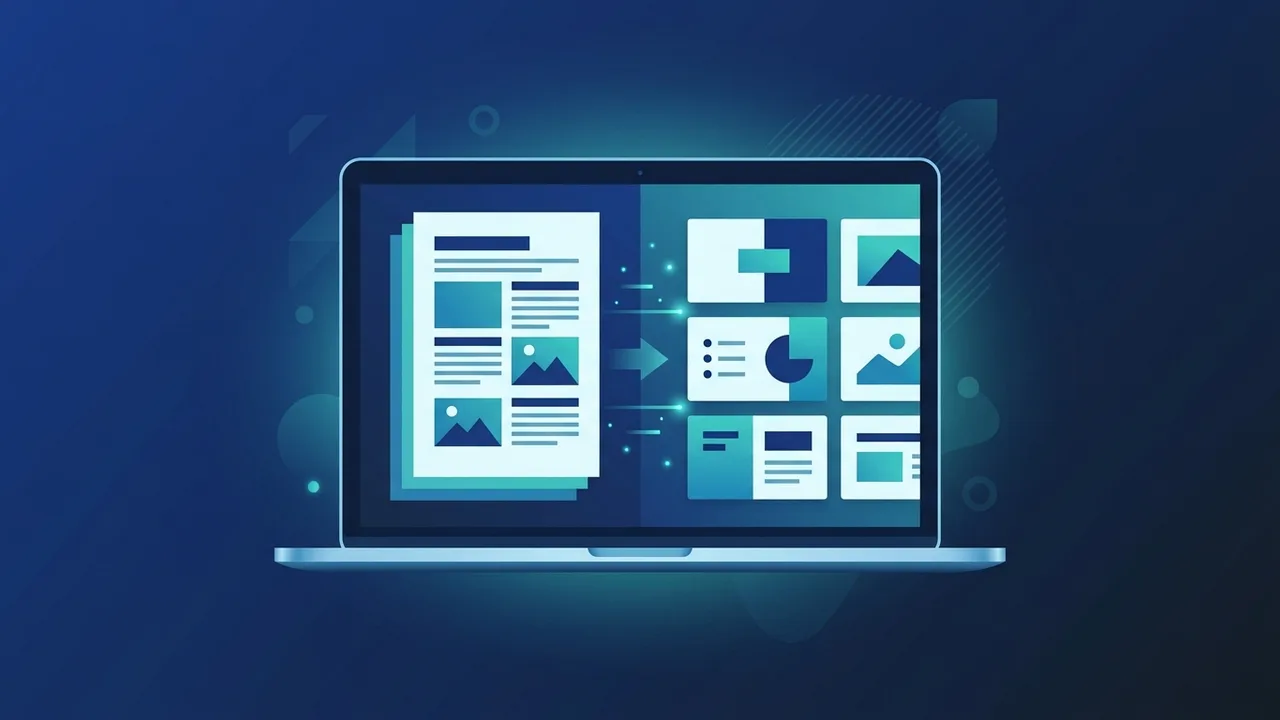
Handling digital documents efficiently is a key pillar of modern business operations in Saudi Arabia. Often, professionals and students receive static PDF files but need to present the data interactively. In such cases, knowing how to convert PDF to PowerPoint becomes a vital skill to transform rigid text and diagrams into dynamic, highly editable presentation slides.
Overview of convert PDF to PowerPoint
PDF files are globally respected for locking layouts, ensuring that documents look identical on every screen. However, this absolute rigidity becomes a major obstacle when you need to adapt the content for a corporate meeting, pitch deck, or educational lecture. Choosing to convert PDF to PowerPoint allows you to bypass rebuilding slides from scratch, freeing up your valuable time for public speaking preparation and content refinement.
In the Saudi Arabian market, where efficiency and rapid business scaling are paramount, manual replication of data is a costly waste of productivity. Transitioning files from fixed formats to editable presentation slides ensures seamless collaboration, enabling team members to fine-tune messaging, insert animations, and customize visual styles to align perfectly with branding guidelines.
Key Features
Using professional conversion methods delivers several high-value advantages that elevate the quality of your workflow:
- Complete Content Editability: Post-conversion, you can seamlessly modify texts, tweak design colors, and adjust shape elements on every individual slide.
- Layout and Structure Preservation: Modern tools intelligently recognize column layouts, tables, embedded images, and original paragraphs, positioning them correctly on slides.
- Substantial Time Savings: Instantly eliminates the tedious task of manually copying texts or cropping and re-uploading individual images.
- Dynamic Elements Integration: Once converted into native PPTX files, you can freely apply cinematic slide transitions, complex animations, and interactive speaker notes.
How to Use
There are multiple secure ways to perform this conversion depending on your technical setup and security requirements. Below are the primary methods:
Method 1: Utilizing Desktop Productivity Software
Desktop applications are highly recommended for enterprise environments in Saudi Arabia due to their offline security and superior formatting accuracy:
- Open your preferred professional PDF editor application on your machine.
- Navigate to the main menu and locate the Export or Save As option.
- Select Microsoft PowerPoint Presentation or the standard (.pptx) format as your target.
- Click the convert button and save the freshly generated presentation to your local drive.
Method 2: Leveraging Secure Cloud Converters
If you require a quick conversion on the go without installing software, secure online services offer a convenient route:
- Visit a reputable and secure online file conversion portal through your browser.
- Drag and drop the specific PDF document you wish to transform into the upload area.
- Choose PPTX as the output format and initiate the conversion.
- Once processing is finished, download the final PowerPoint file immediately to your computer.
Common Questions
Here we address some of the most frequent inquiries from users across Saudi Arabia regarding document conversion:
Does the conversion process maintain Arabic text alignment?
Yes, utilizing modern software with built-in OCR and comprehensive script support ensures that Middle Eastern texts remain intact and properly aligned without broken characters.
Can I convert password-protected PDF files?
To convert secured PDFs, you must first input the correct authorization password to unlock editing rights, ensuring compliance with intellectual property protection.
What makes premium offline converters better than free online tools?
Premium offline software guarantees strict data privacy, handles massive file sizes without interruption, and executes complex optical character recognition much more accurately.
Important Tips
To secure flawless results and prevent common formatting errors during file conversion, consider these practical suggestions:
- Assess the Quality of the Source PDF: If the original document consists of low-resolution scanned pages, make sure to enable OCR during conversion to ensure the text remains editable.
- Verify Local Font Availability: Ensure all fonts used in the source document are installed on your presentation device to prevent system fonts from distorting your slide layout.
- Inspect and Refine Slide Elements: Spend a few minutes post-conversion adjusting overlapping bounding boxes, image alignments, and text padding to match professional design standards.
- Utilize Fully Licensed Software: Keeping your main office suites up-to-date ensures seamless integration between different document formats and protects your business from data vulnerabilities.
Conclusion
Learning to convert PDF to PowerPoint effectively is an essential skill for professionals seeking to boost productivity, share data gracefully, and design engaging business pitches. By selecting the right methodologies and applying structured post-conversion cleanup, you can effortlessly turn static files into persuasive, interactive slides that leave a lasting impact on your audience.
If you need a genuine Office 2021 Pro Plus Lifetime license, you'll find it at ABMKeys at a fair price with instant WhatsApp delivery.
Frequently Asked Questions
Will my Arabic texts be preserved correctly during conversion?
Is there any loss in image quality after converting the file?
How can I edit the text within the newly created presentation?
Do I need an active internet connection to perform this file conversion?
You can get a genuine license from ABMKeys at a competitive price with instant WhatsApp delivery.
Buy Now