
Convert PDF to Excel Step by Step
Learn the practical steps and key features to convert PDF files to Excel spreadsheets easily and accurately. A simplified guide explaining the best methods to save time and effort.
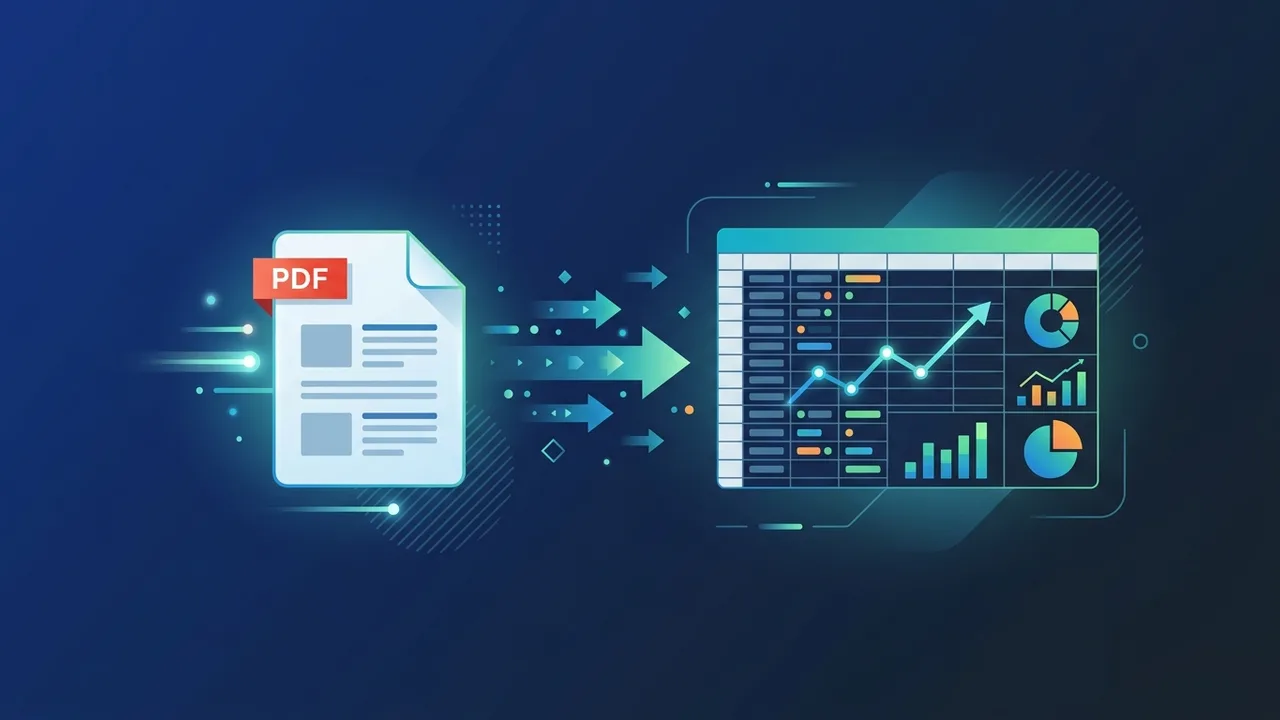
Managing data efficiently is crucial for businesses and individuals in Saudi Arabia. Often, financial reports, invoices, and structured lists are shared in non-editable formats, making it necessary to convert pdf to excel to manipulate numbers, build dashboards, and perform complex calculations seamlessly in a professional environment.
Overview of convert pdf to excel
The decision to convert pdf to excel is often driven by the need for deeper data analysis, flexibility, and robust reporting. While PDF is the gold standard for preserving document layout and sharing final versions securely, it restricts anyone looking to filter columns, apply math formulas, or generate pivot tables. Manually retyping data is not only a massive waste of precious operational hours but also introduces high risks of mathematical and typographical errors.
For financial analysts, accountants, and administrative teams across Saudi Arabia, learning how to properly convert pdf to excel is a game-changer. It bridges the gap between static documents and interactive worksheets, making it a vital workflow enhancement for modern enterprises aiming to maintain high productivity standards.
Key Features
When you convert pdf to excel, you unlock several key advantages that streamline database management and administrative tasks. The major benefits of adopting this digital transition include:
- Structure and Grid Alignment: Advanced conversion engines recognize original borders and cells, ensuring data lands exactly where it belongs in the sheet.
- Formula and Formatting Ready: Converted sheets allow instant implementation of SUM, AVERAGE, and other essential logical formulas.
- Massive Time Savings: Extracting multi-page tables takes less than a minute, eliminating days of tedious manual data entry.
- Unmatched Data Integrity: System-to-system extraction avoids manual typing typos, securing the precise translation of sensitive financial values.
- OCR Assistance: Modern tools can read text within scanned document images, allowing editable cells to be created easily out of flat files.
How to Use
Here is how to convert pdf to excel using the most reliable methods. To guarantee security and prevent data leaks, it is highly recommended to perform this action offline using official desktop software instead of sketchy online sites.
Method 1: Using Microsoft Excel's Native PDF Import (Recommended)
This built-in feature of modern Microsoft Office packages is the easiest way to convert pdf to excel directly without installing external plugins:
- Launch a new spreadsheet in your genuine Microsoft Excel application.
- Click on the Data tab located in the main top navigation menu.
- On the far left, click Get Data, hover over From File, and choose From PDF.
- Navigate through your local storage, select the target PDF document, and click Import.
- A Navigator dialog box will load, displaying previews of the tables detected inside the file. Select the table you need.
- Click the Load button to instantly populate the data directly onto your worksheet as a fully editable grid.
Method 2: Using Adobe Acrobat Pro
If you have a dedicated PDF editing suite, this method is highly reliable:
- Open the desired document within the software.
- Locate the Export PDF tool in the right-hand panel.
- Select Spreadsheet as your export format and pick Microsoft Excel Workbook.
- Click export, set your preferred destination folder, and save your editable file.
Common Questions
Using outdated or unlicensed tools makes the process to convert pdf to excel much more unreliable. Users often worry about language rendering, particularly when dealing with mixed-language columns. Utilizing licensed, authentic office applications ensures proper character decoding, avoiding broken text or inverted numbers. This ensures that administrative teams across various industries can work confidently without worrying about document corruption.
Important Tips
To successfully convert pdf to excel with high accuracy and neat formatting, keep these expert recommendations in mind:
- Check Source Text Selection: Before converting, check if you can highlight and copy text in the PDF. If the text is flat or locked, ensure your conversion tool has active OCR features enabled.
- Use Genuine Software: Operating with authentic productivity tools provides the latest extraction algorithms, making the transformation much smoother and keeping your data safe from malware.
- Audit Numerical Formats: Always verify that currency signs (such as SAR) and decimal points are recognized correctly by Excel's localization settings.
- Clean Rows and Columns: Utilize Excel's filtering and formatting features to clean up any redundant headers or extra white spaces generated during the import phase.
Conclusion
Mastering this simple data transition allows professionals in the Kingdom to work smarter, not harder. Relying on verified built-in features keeps your information secure and your workflow incredibly efficient.
If you need a genuine Office 2021 Pro Plus Lifetime license, you'll find it at ABMKeys at a fair price with instant WhatsApp delivery.
Frequently Asked Questions
Can I convert a scanned PDF file to Excel?
Why does text alignment get messy after converting PDF to Excel?
Is there a built-in feature to extract PDF data directly within Excel?
Does using an unlicensed version of Excel affect the conversion process?
You can get a genuine license from ABMKeys at a competitive price with instant WhatsApp delivery.
Buy Now