
Change Windows 10 Language Step by Step
A practical step-by-step guide on how to change Windows 10 language, from installing language packs to adjusting display and regional settings for personal or professional use.
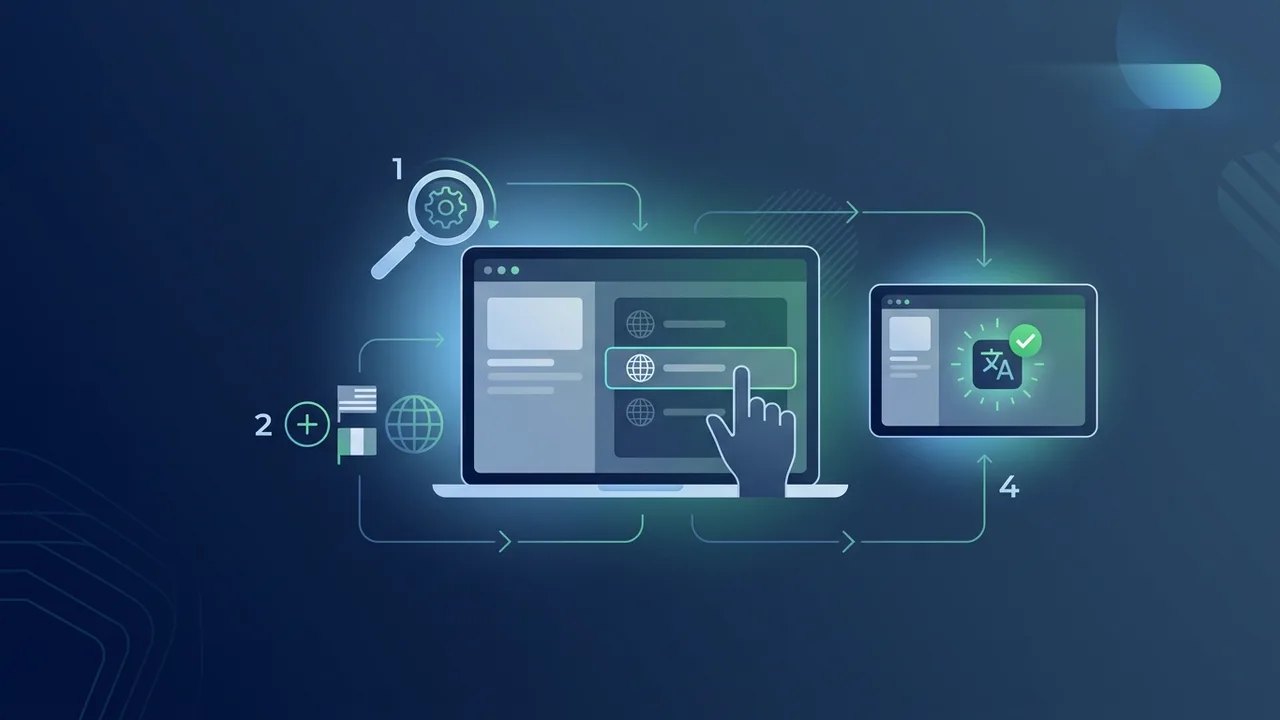
Overview of change Windows 10 language
Windows 10 is designed with robust multilingual capabilities, allowing users around the globe to adapt their computers to local preferences. When you change Windows 10 language, you modify the text displayed in menus, dialogue boxes, system settings, and native applications. This feature ensures that users can interact with their computers naturally without having to learn complex technical terms in a foreign language.
In the Saudi market, being able to change Windows 10 language easily is crucial. Many multinational companies, government departments, and educational organizations operate using both English and Arabic. Instead of purchasing different machines or reinstalling the entire operating system, users can simply leverage the built-in settings of Windows 10 to switch display languages instantly, saving precious setup time while keeping all personal files, apps, and configuration settings completely intact.
Key Features
The language management system in Windows 10 offers several highly integrated features that go far beyond simple menu translations. Here are the core capabilities you access when you modify your system language:
- Unified User Interface (UI) Translation: The core operating system elements, including the Start Menu, File Explorer, Settings, and administrative tools, translate comprehensively to the chosen language.
- Automated Keyboard Layout Integration: Installing a new display language automatically installs the corresponding keyboard input method, making it easy to type in multiple languages.
- Text-to-Speech and Speech Recognition: Full language packs include advanced features like voice commands and text-to-speech tools tailored to the specific dialect or region selected.
- Per-User Language Profiles: On shared computers, different users can set their own preferred display languages on their personal accounts without interfering with each other's configurations.
- App Display Synchronization: Modern apps installed from the Microsoft Store will automatically match your newly selected system language, providing a cohesive application experience.
How to Use
Follow these detailed, easy-to-understand steps to change Windows 10 language on your desktop or laptop computer safely and effectively:
Step 1: Open Settings
Click on the Start button in the bottom-left corner of your desktop, then select the Settings cog icon. Alternatively, you can open the settings window instantly by pressing the Windows Key + I shortcut on your keyboard.
Step 2: Access Time & Language Settings
In the main Settings menu, look for and click on the Time & Language category. This section controls your system date, time zone, regional formats, and speech configurations.
Step 3: Navigate to Language Section
On the left-side navigation panel, select the Language tab. You will see your current "Windows display language" at the top, along with a list of your configured languages under the "Preferred languages" section.
Step 4: Add a New Language
Click the Add a language button (indicated by a plus '+' sign). A pop-up menu containing all available international languages will appear on your screen.
Step 5: Search and Choose Your Language
Type the name of the language you wish to install (such as "Arabic" or "English") into the search bar. Select the correct language option from the list and click the Next button at the bottom of the window.
Step 6: Install and Set as Display Language
In the install options screen, check the box that says Set as my Windows display language. Ensure that the "Language pack" option is checked, then click Install. Your system will download the required files from the Microsoft servers.
Step 7: Sign Out to Apply Changes
Once the download and installation process is complete, Windows will notify you that it needs to sign you out to apply the new interface language. Click Yes, sign out now. When you sign back in, your entire system interface will be running in your newly chosen language.
Common Questions
Understanding how the operating system handles language packs can prevent common configuration errors. Here we address some of the most frequent queries from users:
Can I install multiple language packs on my device?
Yes, you can install as many language packs as you need. This allows you to switch your display language back and forth whenever necessary, which is highly useful for shared family or office computers.
Why is some text still showing in the original language after switching?
Certain legacy system files, third-party software programs, or website scripts do not automatically switch their languages based on your OS settings. These programs require you to change their display language manually within their own internal preferences.
Important Tips
To avoid common technical hiccups while configuring your system language, keep the following practical tips in mind:
- Verify Windows Edition Compatibility: Ensure your computer is not running the "Windows 10 Home Single Language" edition. This specific version restricts display changes to the single language pre-installed on the device. To change languages on this edition, you will need to upgrade to Windows 10 Pro.
- Maintain a Stable Internet Connection: Downloading a full language pack can require a significant amount of data. Make sure you are connected to a stable and fast internet connection during the installation process to prevent file corruption.
- Keep Windows Fully Updated: Before trying to install new language packs, check for and install any pending Windows Updates to ensure maximum system file compatibility and security.
- Use Genuine Software: Operating system customization, including language updates, works best and remains fully secure when you use a genuine, properly activated copy of Windows 10.
Conclusion
Adjusting your operating system's language to suit your native speaking or working preference is a simple yet powerful way to elevate your computer usage experience. By following this guide, you can comfortably set up your system to support bilingual or monolingual workflows, helping you get the most out of your digital environment in Saudi Arabia.
If you need a genuine Windows 10 Pro Lifetime license, you'll find it at ABMKeys at a fair price with instant WhatsApp delivery.
Frequently Asked Questions
Can I change the Windows 10 language at any time?
Does changing the language affect my personal files?
What should I do if the language pack fails to install?
How can I quickly switch between typing languages on my keyboard?
You can get a genuine license from ABMKeys at a competitive price with instant WhatsApp delivery.
Buy Now