
Change Username Windows 11: The Right Way to Do It
Learn the correct and safe ways to change username in Windows 11 step-by-step, whether using a local or Microsoft account, with tips to avoid data loss.
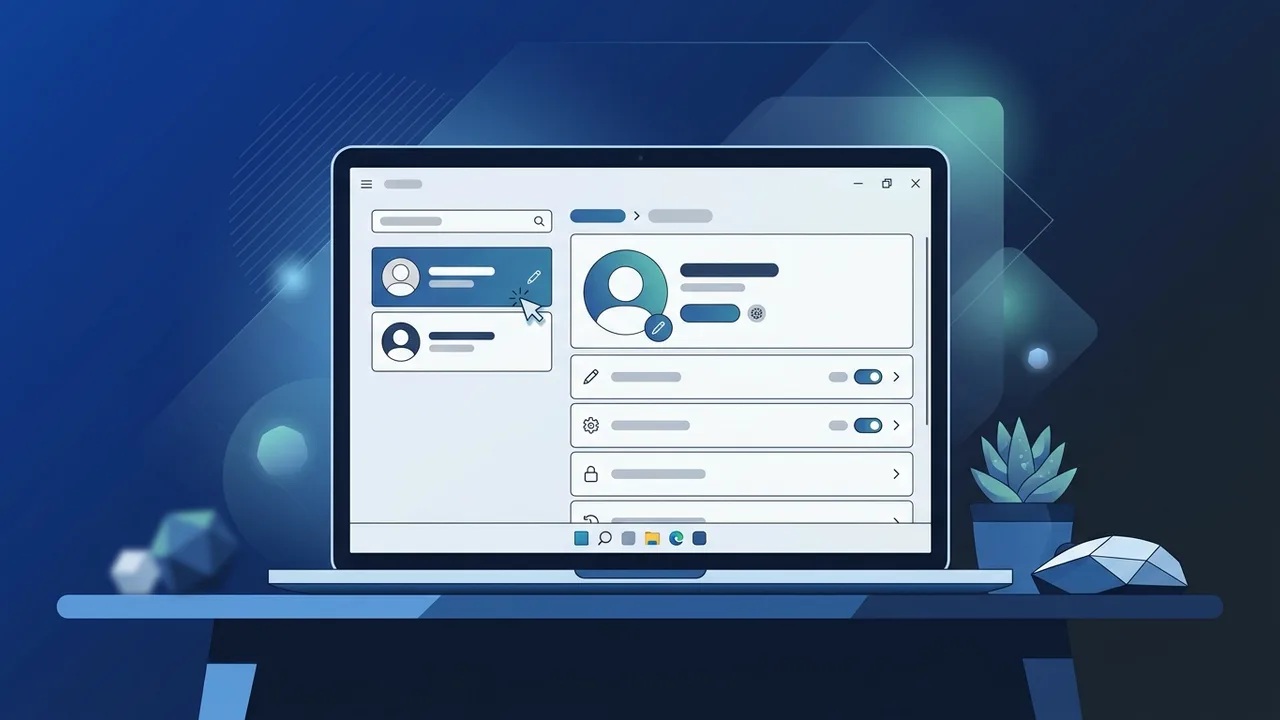
Overview of change username windows 11
Windows 11 is one of the most flexible and customizable operating systems, meeting the needs of both individuals and businesses in Saudi Arabia. Many users seek a safe and correct way to update their personal information within the system, with one of the most common adjustments being to change username windows 11. Whether you have purchased a pre-owned computer and want to personalize it, or you simply want to update your account details to reflect a new professional identity, this process is straightforward when executed correctly without causing system conflicts.
It is crucial to note that there is a fundamental difference between two types of accounts on Windows 11: Local Accounts and Microsoft Accounts. This distinction directly impacts the steps required to modify the display name, as each profile type requires a completely different approach. This practical and simplified guide will walk you through both scenarios step-by-step.
Key Features
Modifying your account identity is not just about aesthetics or personal preference; it offers several practical and organizational benefits that are highly valued in both home and business environments:
- Professionalism and Organization: Performing a change username windows 11 operation helps organize devices within Saudi companies and corporate offices, allowing IT administrators to easily identify the active user of each workstation.
- Privacy Protection: When sharing screens during video conferences, remote presentations, or webinars, updating your display name prevents temporary, placeholder, or inappropriate names from being displayed to other participants.
- Seamless Shared Device Management: In households or small offices where multiple individuals share a single computer, distinct user names prevent profile confusion and make switching between profiles much smoother.
- Symmetrical Cloud Synchronization: Changing your name on a connected account ensures that your identity is instantly synchronized across all Microsoft cloud services and associated devices.
How to Use
To successfully perform a change username windows 11 action, you must first determine what kind of account you are currently using on your system. Below are the detailed steps for each available method:
Method 1: Renaming a Microsoft Account
If your computer is linked to a Microsoft email address (such as Outlook, Hotmail, or Live), the update must be performed online through the account management portal:
- Open the Settings app by pressing
Windows Key + Ion your keyboard. - From the left-hand sidebar, select Accounts, then click on Your info.
- Under the Related Settings section, click on Manage my accounts. This action will automatically launch your default web browser and open your Microsoft Profile page.
- Sign in with your credentials if prompted, and click on the Your Info tab located at the top of the webpage.
- Click on the Edit name link located next to your current profile name.
- Enter your new First Name and Last Name, complete the verification security captcha, and then click Save.
- Restart your PC to allow the system to apply the online changes locally to your desktop interface.
Method 2: Renaming a Local Account via Control Panel
If you are utilizing an offline local user profile on your PC, you can easily modify your name directly through the legacy Control Panel interface:
- Click the search icon on the taskbar, type Control Panel, and open the application.
- Set the View By option to Category, and then click on User Accounts.
- Click on User Accounts once more, and select the specific local profile you wish to edit.
- Click on the Change your account name option.
- Type the newly preferred name in the text field provided, and click the Change Name button to apply.
- You will notice the updated name immediately displayed on your login screen and Start menu.
Method 3: Utilizing the netplwiz Advanced Utility
This classic administrative utility is one of the fastest local methods to modify account identifiers:
- Press
Windows Key + Rto launch the Run dialog box. - Type
netplwizin the input field and press Enter or click OK. - In the User Accounts window, highlight the profile you want to edit from the list and click Properties.
- In the General tab, modify the text in the User name or Full Name fields.
- Click Apply, then click OK to close the windows and save your settings.
Common Questions
Here we address several of the most frequently asked questions regarding user account configuration adjustments:
Does this process rename the user profile directory in the C drive?
No, initiating a change username windows 11 command only updates the visual display name on your Lock Screen and Start Menu. It does not rename the underlying directory folder located at C:\Users\. Changing the root folder name requires deep and risky registry modifications that are not recommended for typical users due to potential system instability.
Do I need administrator access to change user names?
Yes, to modify other local profiles on the computer or to run advanced configuration utilities like netplwiz, you must be logged into an active account that possesses full administrative privileges on that specific PC.
How long does it take for a Microsoft Account name change to reflect locally?
Typically, online account changes take anywhere from a few minutes to an hour to synchronize with your local system. Performing a full system reboot after making the change online will help force-sync the new settings instantly.
Important Tips
Before proceeding with any modifications to your user account structures, we highly recommend keeping the following precautions in mind:
- Establish a System Restore Point: It is always wise to create a System Restore Point before making administrative modifications to your system configuration, giving you a quick recovery path if anything goes wrong.
- Avoid Special Characters: When choosing your new username, avoid using special characters such as (/, \, *, ?, ", <, >, |) as these symbols can interfere with directory paths and cause software execution issues.
- Verify Cloud Backup Status: If you are modifying a Microsoft Account, make sure your local OneDrive synchronization is fully complete before logging out or restarting to prevent potential data sync interruptions.
- Perform a Data Backup: For absolute peace of mind, keep a secure copy of your primary documents and user files stored safely on an external storage drive or secure cloud storage before altering system profiles.
Conclusion
Performing a change username windows 11 operation is an effective way to personalize your operating system and maintain a highly organized, professional workspace. By following the secure methods outlined in this guide, you can confidently configure your local or cloud-connected user profiles without risking system integrity.
If you need a genuine Windows 11 Pro Lifetime license, you'll find it at ABMKeys at a fair price with instant WhatsApp delivery.
Frequently Asked Questions
Does this rename the user profile folder?
Do I need administrator privileges?
Will it affect my saved files or settings?
What is the difference between changing a local account and a Microsoft account name?
You can get a genuine license from ABMKeys at a competitive price with instant WhatsApp delivery.
Buy Now