
7 Practical Steps to Windows 11 Wallpapers
Learn how to change and customize Windows 11 wallpapers the right way — from enabling Windows Spotlight to downloading 4K original backgrounds and setting up live wallpapers safely. A practical step-by-step guide for all users.
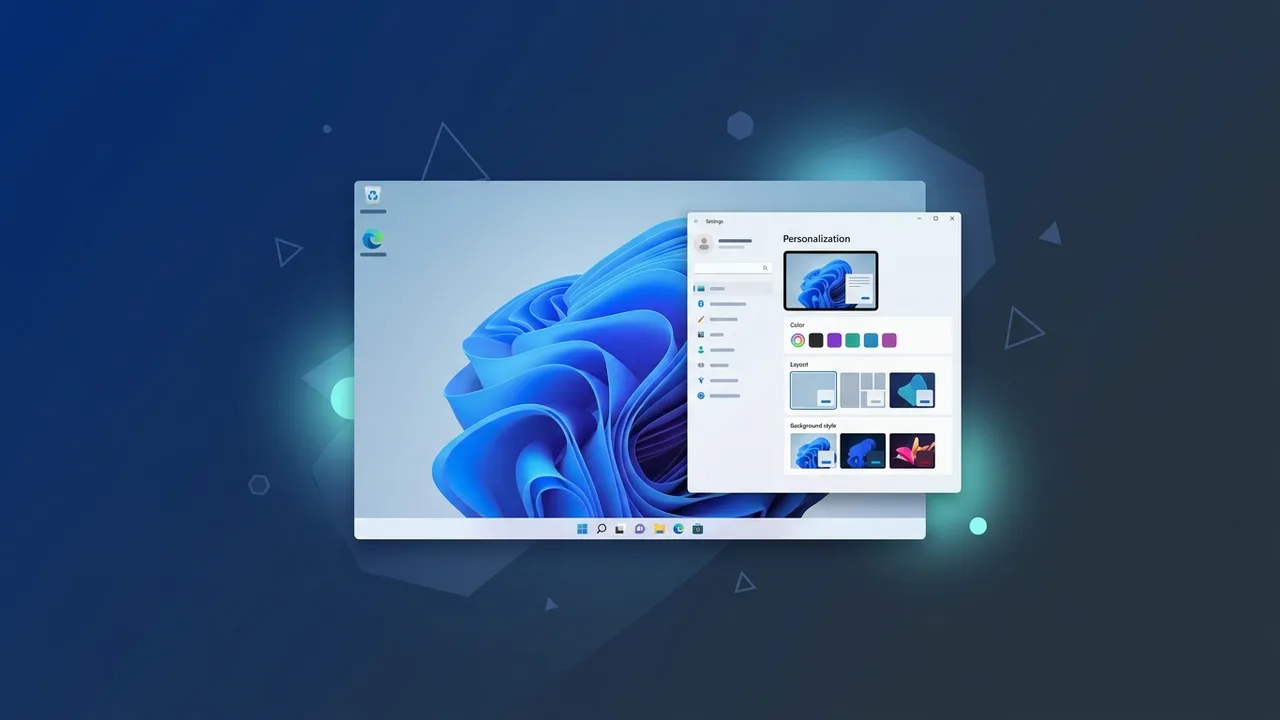
Customizing your Windows 11 wallpapers is one of the simplest ways to personalize your desktop and elevate your daily computing experience. Whether you want to download Windows 11 original wallpapers in 4K, enable Spotlight for automatic daily updates, or set up a live animated background, this step-by-step guide covers everything you need to know to do it right.
How to Change Your Desktop Background in Windows 11 (Step-by-Step)
Changing the Windows 11 desktop background is a straightforward process that takes just a few seconds:
- Right-click anywhere on the desktop and select "Personalize".
- In the left-hand panel, click "Background".
- From the "Personalize your background" dropdown, choose one of the following:
— Picture: Set a specific image from your device.
— Solid color: Apply a single flat color.
— Slideshow: Rotate a folder of images automatically. - If you chose Picture, click "Browse photos" and select your desired image file.
- Choose a fit option: Fill, Fit, Stretch, Tile, Center, or Span (for multi-monitor setups).
- The wallpaper is applied instantly — no restart required.
Alternatively, you can right-click any image in File Explorer and select "Set as desktop background" directly. This is the fastest method when you already have the image saved on your device. Both approaches work equally well for customizing your Windows 11 desktop backgrounds in HD or 4K.
Using Windows Spotlight to Automatically Update Your Wallpaper Daily
Windows Spotlight is one of the most elegant wallpaper features built into Windows 11. It delivers high-quality, professionally curated images from Microsoft's servers and refreshes them automatically — no manual effort required.
Enable Spotlight on the Lock Screen
- Open Settings → Personalization → Lock screen.
- Under "Personalize your lock screen," select "Windows Spotlight" from the dropdown.
Enable Spotlight on the Desktop
- Go to Settings → Personalization → Background.
- Select "Windows Spotlight" from the "Personalize your background" dropdown.
Once enabled, you'll notice a small icon on the desktop that lets you like or dislike the current image. Over time, this feedback trains the system to serve images aligned with your preferences. Note that this feature requires an active internet connection to fetch new Windows Spotlight wallpapers. It also allows you to independently manage the Windows 11 lock screen background separately from the desktop wallpaper.
How to Download Original Windows 11 Default Wallpapers in 4K Resolution
Many users want to restore or save the original Windows 11 wallpapers that shipped with the operating system, especially in their full 4K resolution. Here's how to access and download them.
Locate Wallpapers Already on Your Device
All default wallpapers are stored locally on your PC. Navigate to the following path using File Explorer:
C:\Windows\Web\Wallpaper\
Inside, you'll find subfolders including Windows, Flowers, Glow, and more — each containing the default images in their highest available local resolution. Lock screen images are stored separately at:
C:\Windows\Web\Screen\
Download Full 4K Versions Online
Microsoft does not provide a direct download page for standalone wallpaper files, but trusted community platforms regularly extract and publish them in full 4K resolution (3840×2160). Sites like WallpaperHub are dedicated to sharing official and exclusive Microsoft wallpapers. When downloading, always verify the file extension is .jpg or .png and that the resolution matches or exceeds your screen's native resolution for the sharpest result.
How to Set Up Live and Dynamic Wallpapers in Windows 11 Safely
Windows 11 does not natively support animated or live wallpapers, so third-party applications are necessary. Here are the safest and most recommended options available to users in Saudi Arabia and globally.
Option 1: Wallpaper Engine (via Steam)
Wallpaper Engine is the most widely used application for animated desktop backgrounds. It features a massive community library with thousands of animated, interactive, and video-based wallpapers.
- Purchase and install Wallpaper Engine from the Steam store (available at a low price).
- Launch the application and browse the Workshop library.
- Select any wallpaper and click "Subscribe" to apply it to your desktop.
- Adjust performance settings under Quality to reduce CPU/GPU usage when needed.
Option 2: Lively Wallpaper (Free and Open Source)
Lively Wallpaper is a completely free alternative available through the Microsoft Store. It supports GIF files, video files, and even web pages as wallpapers.
- Open the Microsoft Store and search for "Lively Wallpaper".
- Install and launch the application.
- Drag and drop a video or GIF file into the interface to apply it instantly.
Always install live wallpaper applications from verified sources such as the Microsoft Store or Steam. Avoid downloading such tools from unknown websites, as they may bundle malware or adware that compromises your system security.
How to Fix Blurry or Low-Quality Wallpaper Issues in Windows 11
A common frustration among Windows 11 users — especially those with high-end monitors — is that wallpapers appear blurry or lower quality than expected after being applied. Below are the most common causes and their solutions.
Issue 1: Windows Automatic JPEG Compression
Windows 11 automatically compresses wallpaper images to save disk space, which can degrade quality significantly. To disable this compression:
- Press Win + R, type
regedit, and hit Enter to open Registry Editor. - Navigate to:
HKEY_CURRENT_USER\Control Panel\Desktop - Right-click in the right pane and create a new DWORD (32-bit) Value.
- Name it JPEGImportQuality and set its value to 100 (decimal).
- Restart your PC and re-apply the wallpaper.
Issue 2: Low Source Image Resolution
If the original image resolution is lower than your screen resolution, it will appear stretched and blurry. For 1080p monitors, use images of at least 1920×1080 pixels. For 4K monitors, use images of at least 3840×2160 pixels. Always download Windows 11 desktop backgrounds in HD or 4K to ensure crispness.
Issue 3: Wrong Fit Setting
Using "Stretch" as the fit mode forces Windows to scale the image to fill the screen regardless of aspect ratio, causing visible distortion. Switch to "Fill" for the best result on most monitors, as it scales the image proportionally and crops any excess rather than distorting it.
Top Safe Websites to Download Premium Windows 11 Wallpapers for Free
Finding high-quality, malware-free wallpapers is a real concern for many users. Below are the most reliable platforms for downloading 4K desktop backgrounds for Windows 11 safely and legally.
- Unsplash (unsplash.com): A vast library of professional-grade, royalty-free photographs in resolutions suitable for 4K and even 8K displays. Free for personal and commercial use.
- Pexels (pexels.com): Similar to Unsplash, offering both photos and short video clips in high resolution — excellent for sourcing live wallpaper content as well.
- WallpaperHub (wallpaperhub.app): A community-maintained platform dedicated specifically to Windows wallpapers, including official and leaked Microsoft assets in full 4K quality.
- Wallpaper Abyss (wall.alphacoders.com): A large community-driven archive with millions of wallpapers organized by category, resolution, color, and theme — including minimalist and aesthetic styles popular in Saudi design communities.
- DeviantArt (deviantart.com): A creative platform where independent artists share exclusive, often hand-crafted wallpapers not available anywhere else.
When downloading from any site, always go directly to the official source page rather than third-party mirror links. Verify the file extension is .jpg or .png — never execute .exe or .zip files that claim to be wallpaper packs, as these can carry security risks.
If you need a genuine Windows 11 Pro Lifetime license, you'll find it at ABMKeys at a fair price with instant WhatsApp delivery.
Frequently Asked Questions
How do I change the desktop wallpaper in Windows 11?
Where are the default Windows 11 wallpapers stored on my PC?
Can I add a live wallpaper to Windows 11 for free?
You can get a genuine license from ABMKeys at a competitive price with instant WhatsApp delivery.
Buy Now