
7 Practical Steps to Windows 10 Update Tool
Learn how to safely download and use the official Windows 10 update tool step by step. A practical guide designed for users in Saudi Arabia to upgrade and fix common update issues.
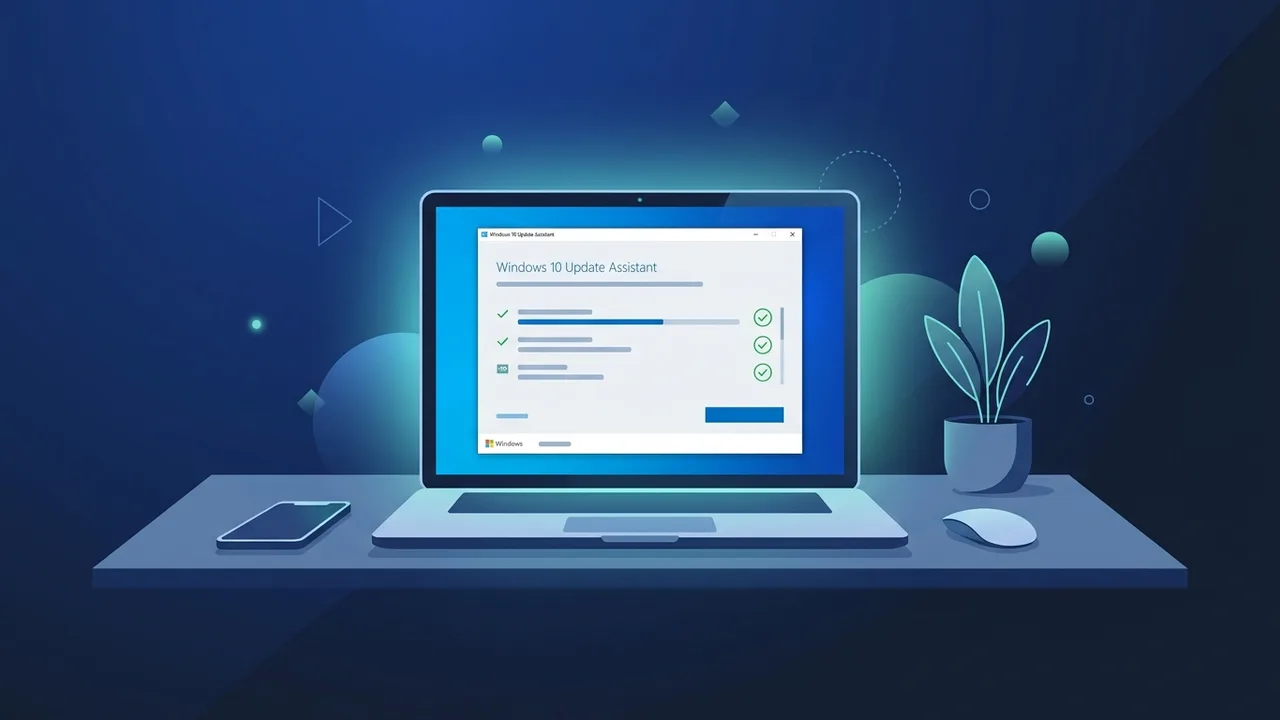
Microsoft Windows 10 remains one of the most reliable and widely used operating systems across Saudi Arabia, supporting both corporate infrastructures, educational frameworks, and home users. To achieve maximum productivity, stability, and cyber safety, using the official Windows 10 update tool is the most secure method to upgrade your computer. This detailed step-by-step guide walks you through downloading, preparing, and operating the tool safely without running into performance degradation or technical errors.
What is the Windows 10 Update Assistant?
The Windows 10 Update Assistant is an official, free application designed by Microsoft to help users perform manual operating system updates. By utilizing the Windows 10 Update Assistant download, you bypass potential delays from the standard built-in Windows Update menu and immediately fetch the absolute latest Windows 10 version directly from secure Microsoft servers.
Using this Microsoft update assistant tool is particularly essential in Saudi Arabia. Many critical services, such as the national educational platform 'Madrasati', along with government transactional portals like Absher and Najiz, enforce stringent cyber security baselines. Keeping your operating system patched to its latest iteration ensures these websites load securely, certificates validate correctly, and user login credentials remain shielded from modern web vulnerabilities.
System Requirements Before Running the Windows 10 Update Tool
Before launching the upgrade assistant, make sure your computer meets these essential system requirements to secure an uninterrupted deployment:
- Free Hard Disk Space: A minimum of 16 GB to 20 GB of vacant space on your primary C: partition is highly recommended for storing temporary setup archives.
- System Memory (RAM): At least 2 GB RAM for 64-bit systems, though 4 GB or higher is suggested to guarantee responsive post-update performance.
- Stable Network Connection: In Saudi Arabia, many domestic networks run on dynamic 5G or 4G LTE home routers. Because system upgrades involve transferring multiple gigabytes, users should confirm their remaining monthly quotas before starting to prevent unexpected cellular throttling.
- Authentic OS License: To guarantee full feature compatibility and secure subsequent patches, ensure you are running an original, activated setup. Utilizing unofficial cracks or generic keys often results in activation blocks or installation freezes during the upgrade process.
Step-by-Step Guide to Downloading and Using the Windows 10 Update Tool
Follow these steps to learn how to update Windows 10 correctly using the automated assistant:
Step 1: Download the Setup Tool
Navigate to Microsoft's official Windows 10 software download webpage. Click on the prominent 'Update Now' button to quickly download the lightweight executable file directly to your downloads directory.
Step 2: Run the Assistant
Locate the downloaded file, right-click on it, and select 'Run as administrator'. The program will launch and scan your operating system's current build number, displaying a prompt that shows the newest system build available.
Step 3: Hardware Compatibility Assessment
Click 'Update Now'. The assistant will promptly verify your hardware specifications, confirming if your CPU, Memory (RAM), and storage capacities are compliant. Once green checkmarks appear, click 'Next' to proceed.
Step 4: Downloading and Installing the Update
The system will begin downloading the required files. You can safely minimize this window and continue working, though keeping other demanding tasks to a minimum is advised. Once the download finishes, the program automatically prepares the installation and will ask you to schedule or perform a system reboot to complete the setup.
How to Fix Common Windows 10 Update Errors
Occasional technical hiccups can occur due to corrupt directory structures or network drops. Follow these best practices to troubleshoot and fix Windows 10 update errors efficiently:
- Execute the Built-in Fixes: Use the default Windows update troubleshooter. Access Windows Settings, select 'Update & Security', navigate to the Troubleshooting panel, and launch the updater diagnostic. This tool flushes corrupted update registers automatically.
- Resolve Network Drops on Saudi ISPs: If you experience download drops over local 5G or fiber networks (such as STC, Mobily, or Zain), adjust your DNS settings. Changing your primary DNS to Google's public DNS (8.8.8.8 and 8.8.4.4) often bypasses routing bottlenecks and accelerates the update stream.
- Clear the SoftwareDistribution Directory: When updates get stuck at certain percentages, stop the update service, navigate to
C:\Windows\SoftwareDistribution\Download, delete all stored files within this folder, restart the update service, and try again. This purges fragmented files. - Temporarily Suspend Third-Party Antivirus: External security suites can misidentify update scripts as suspicious activity. Temporarily disable active shields or firewalls, relying on Windows Defender during the upgrade process to prevent unnecessary conflicts.
Difference Between Update Assistant and Media Creation Tool
Understanding the distinction between these utilities helps you select the correct tool for your system needs:
| Feature | Windows 10 Update Assistant | Windows 10 Media Creation Tool |
|---|---|---|
| Primary Purpose | In-place upgrades to the newest system version while leaving your installed programs, files, and settings untouched. | Extracts a complete ISO image or formats a bootable USB drive to perform a fresh system installation. |
| Technical Knowledge Required | Very simple; designed for general users with automated prompts and straightforward options. | Requires moderate technical skills to modify BIOS/UEFI boot priority and handle partition tables. |
| Data Usage | Saves data by only pulling incremental files required to bridge your current build to the latest release. | Downloads a full system image (typically exceeding 4.5 GB), regardless of your current configuration. |
Important Tips for Maintaining Windows Stability and Security Post-Update
Once you successfully finish updating your system, observe these critical steps to keep your machine fast and fully optimized:
- Enable Metered Connection Controls: If you use metered 5G/4G cellular broadband routers, mark your Wi-Fi connection as 'Metered' in your network settings. This prevents Windows from consuming your data cap on background driver installations without your consent.
- Confirm Active System Validation: Navigate to your system activation window to verify your license is authentic. Genuine systems receive immediate, seamless hotfixes that keep your workflow stable and protected against malware.
- Create a System Restore Point: After ensuring your daily work applications, educational platforms, and local digital portals function perfectly, create a fresh restore point. This gives you a safe state to fall back on if a future driver conflict arises.
If you need a genuine Windows 10 Pro Lifetime license, you'll find it at ABMKeys at a fair price with instant WhatsApp delivery.
Frequently Asked Questions
Does the Windows 10 update tool delete my personal files?
How can I conserve cellular data when updating via 5G networks in Saudi Arabia?
What should I do if the update download progress bar gets stuck?
Can I upgrade to Windows 10 for free using this tool?
You can get a genuine license from ABMKeys at a competitive price with instant WhatsApp delivery.
Buy Now