
7 Practical Steps to Excel Spreadsheets
Learn how to build professional Excel spreadsheets from scratch, master essential formulas like VAT calculations, apply custom formatting, and secure your files with passwords.
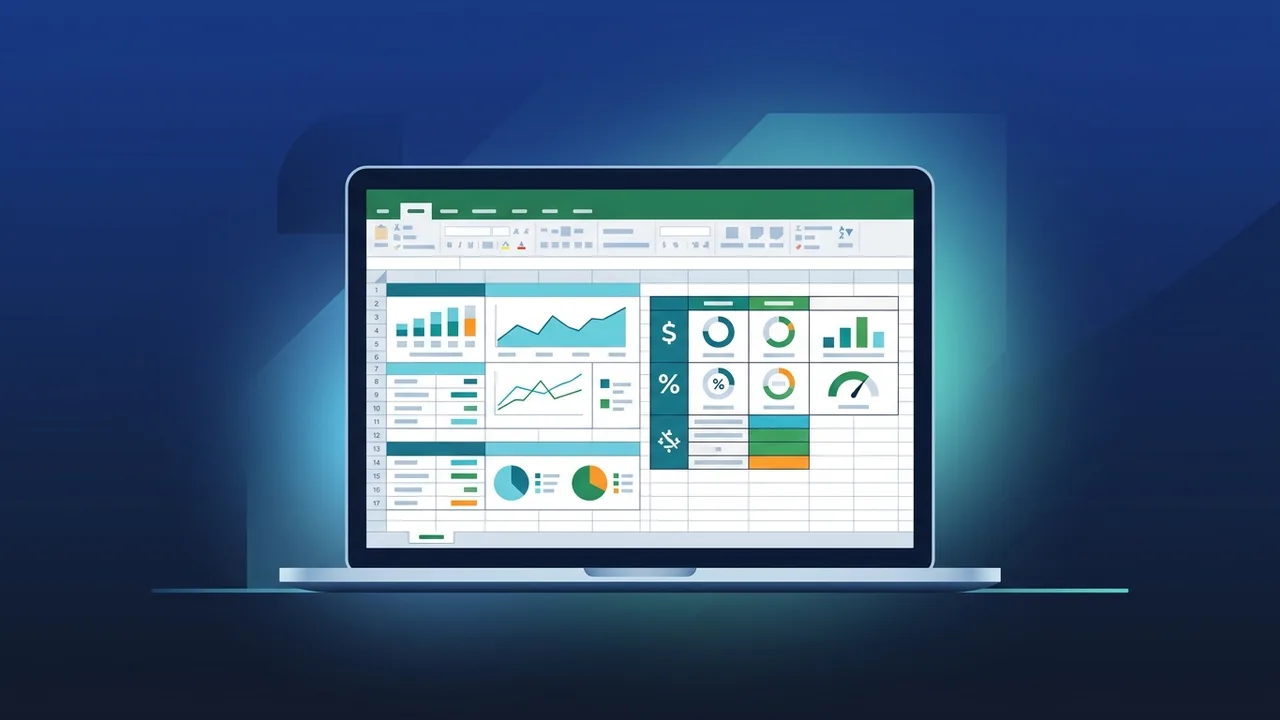
What are Excel Spreadsheets and How to Start from Scratch?
Excel spreadsheets are the most powerful and versatile tools for data management and analysis in the Saudi business market. Whether you are running a startup in Riyadh or working in the financial division of a major enterprise, mastering this software is essential for boosting productivity and making data-driven decisions. The journey begins with understanding the core structure of the program, which consists of a workbook containing multiple worksheets organized into rows and columns that intersect to form cells.
For beginners, starting with a practical Excel data analysis tutorial helps demystify the user interface. The first physical step is to acquire Microsoft 365 Saudi Arabia to access the latest features, allowing you to build your very first spreadsheet. When you open the application, you are greeted with a blank grid. Each cell is identified by a unique coordinate, such as A1, which combines the column letter and row number. This simple coordinate system allows you to build complex, interconnected financial models and operational tracking systems with ease.
Step-by-Step Guide to Designing a Professional and Organized Excel Sheet
Designing a highly functional sheet requires following a structured approach on how to create a spreadsheet in Excel to guarantee clarity and logical data flow. In Saudi Arabia, preparing the sheet for official corporate documentation often requires setting up an Excel Right to Left layout to align perfectly with Arabic reading directions used in government and local business portals.
To accelerate your workflow, you can search for Excel templates free download options, which provide predefined structures for budgeting, scheduling, or payroll. However, building custom sheets from scratch gives you ultimate flexibility. Start by defining your column headers clearly (e.g., Employee Name, Base Salary, Tax, Net Pay). Follow standard Excel formatting tips such as keeping font styles consistent, using soft colors to distinguish headers from raw data, and freezing top rows so headers remain visible when scrolling down large datasets.
Essential Formulas and Functions Every User Must Know
The true automation power of excel spreadsheets lies in formulas and mathematical functions. Incorporating basic Excel formulas for business allows organizations to automate calculations, reducing human error to almost zero. Every business professional should master these core formulas:
- SUM: Quickly totals a continuous range of numbers, such as monthly revenue.
- AVERAGE: Computes the mean value of a dataset, like average daily sales.
- IF: Evaluates conditions to return specific values, ideal for checking policy compliance.
- XLOOKUP: Searches a row or column for a key value and retrieves corresponding data from another column.
- PMT: Calculates payments for loans based on constant payments and a constant interest rate.
For businesses operating under Saudi regulations, these formulas are crucial for calculating the 15% VAT (Value Added Tax) on commercial invoices. If a product price is listed in cell B2, you can instantly determine the tax amount by inputting =B2*0.15, and then add it to the subtotal. Similar custom equations can be configured to dynamically track Saudization (Nitaqat) compliance rates within HR files.
How to Format Data and Use Conditional Formatting to Highlight Key Info
Once your numerical data is structured and calculated, proper formatting is required to make the spreadsheet highly readable. Organizing data systematically allows team members to quickly scan documents and draw accurate conclusions. Formatting raw numbers as Currency, Percentages, or Dates prevents confusion and standardizes communication across departments.
Conditional formatting is an advanced feature that automatically changes a cell's appearance (such as fill color or text style) based on its current value. For example, you can set a rule to automatically highlight cell backgrounds in red if a department's budget goes over its limit, or green if an invoice is successfully marked as paid under ZATCA guidelines. Combining this with data sorting and filtering features turns static tables into responsive dashboards that instantly highlight critical business milestones and warnings.
Golden Tips for Securing and Protecting Your Excel Spreadsheet Files
Because spreadsheets frequently contain sensitive payroll, commercial pricing, or tax data, implementing strict security measures is critical to protect your corporate intellectual property. Excel provides several built-in security levels to prevent unauthorized manipulation or data leaks:
- Protect Excel sheet with password: This locks specific sheets to prevent users from accidentally editing or deleting complex formulas while still letting them enter raw data in designated input fields.
- Workbook Protection: Locks the structural elements of the file, preventing users from adding, deleting, renaming, or moving sheets within the file.
- File-level Encryption: Restricts unauthorized users from opening and reading the spreadsheet content unless they provide the correct security password.
Additionally, keeping localized backups on secure cloud storage systems and setting up automatic version history tracking ensures you never lose critical progress due to sudden power loss or system interruptions.
How to Export and Share Excel Spreadsheets Collaboratively with Your Team
Modern workplaces rely heavily on collaborative tools. Sharing your sheets allows multiple stakeholders to cooperate in real-time, eliminating the hassle of sending multiple versions of the same file back and forth via email. By saving your file to OneDrive or SharePoint, team members can simultaneously edit data, leave comments, and track changes securely.
When it comes to presenting quarterly reports to board members or submitting mandatory compliance audits to the Zakat, Tax and Customs Authority (ZATCA), exporting your finalized sheets as PDF files is the safest choice. Exporting preserves your custom layouts, fonts, and colors exactly as intended, preventing other parties from altering the values. To export, click File, choose Export, and select 'Create PDF/XPS Document' to finalize your document for professional presentation.
If you need a genuine Office 2021 Pro Plus Lifetime license, you'll find it at ABMKeys at a fair price with instant WhatsApp delivery.
Frequently Asked Questions
How do I change the spreadsheet direction in Excel to support Arabic?
What is the best way to calculate the 15% VAT in Excel?
Can I protect formula cells only while keeping other cells editable?
How can I find pre-made templates for financial calculations in Excel?
You can get a genuine license from ABMKeys at a competitive price with instant WhatsApp delivery.
Buy Now